From Download to Quilt Path: Put Your Digital Designs to Work
Found a quilting design you love—but now you’re staring at a ZIP file, a folder full of unfamiliar file types, and a thumb drive? Let’s connect those dots!
Hi, everybody! It’s April, and I’m in my craft room with a new tutorial created for APQS. In this video, I walk through the steps between finding a digital design and getting it ready to use in Quilt Path.
We start inside Quilt Path, where I show you how to open a design from your thumb drive, bring it into PatternCAD, and save it as a GPF file so you can find and use it again. You’ll see the actual clicks—including Select Pattern, New Drive, and choosing the drive that holds your designs.
Then we head over to my Mac to browse digital quilting designs, download a purchase, unzip the folder, and copy the files to a thumb drive. I also show you how I eject the drive when I’m finished.
One little detail can make the whole process feel confusing: a purchased design may come with several different file types. In the tutorial, you’ll see a lightning design opened and saved in Quilt Path, plus how I choose files to bring over from the Mac. Seeing the steps on screen makes it much easier to follow along with your own designs.
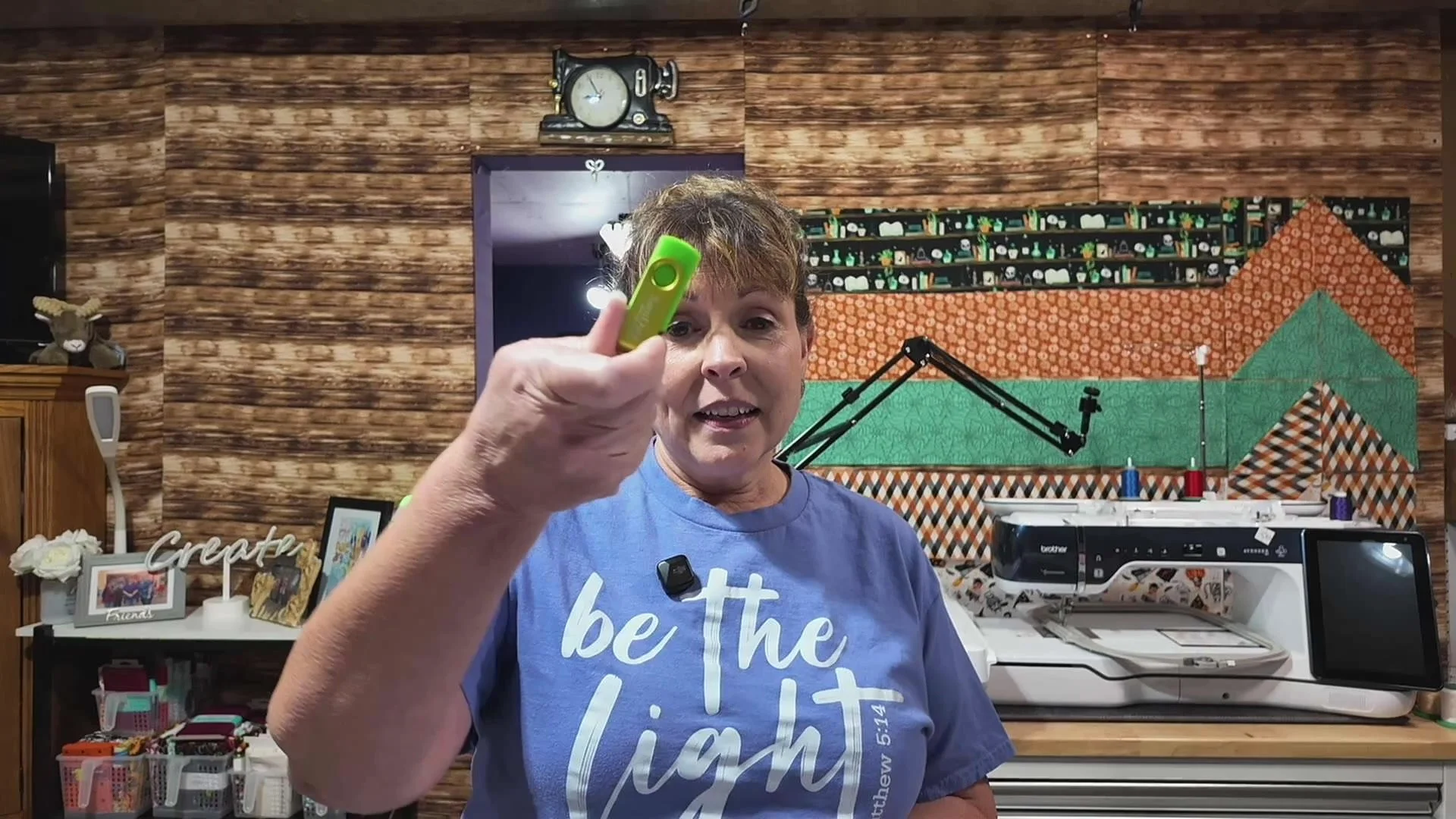
If you’ve ever thought, “I downloaded it…now what?” this video is for you. Grab your thumb drive and join me for a practical walk-through from the download folder to Quilt Path.
Coming to the APQS YouTube channel
This tutorial was created for APQS and will appear on their YouTube channel. Keep an eye out for the Quilt Path digital-files tutorial!
Visit the APQS YouTube channel
Have a great day, eat some chocolate, and be kind to everyone. Until next time—bye!